Save time on visualization work while keeping control of the design. Included with every plan.
Four tools built into Lumion Cloud and Pro to speed up materials, visuals, and iteration.
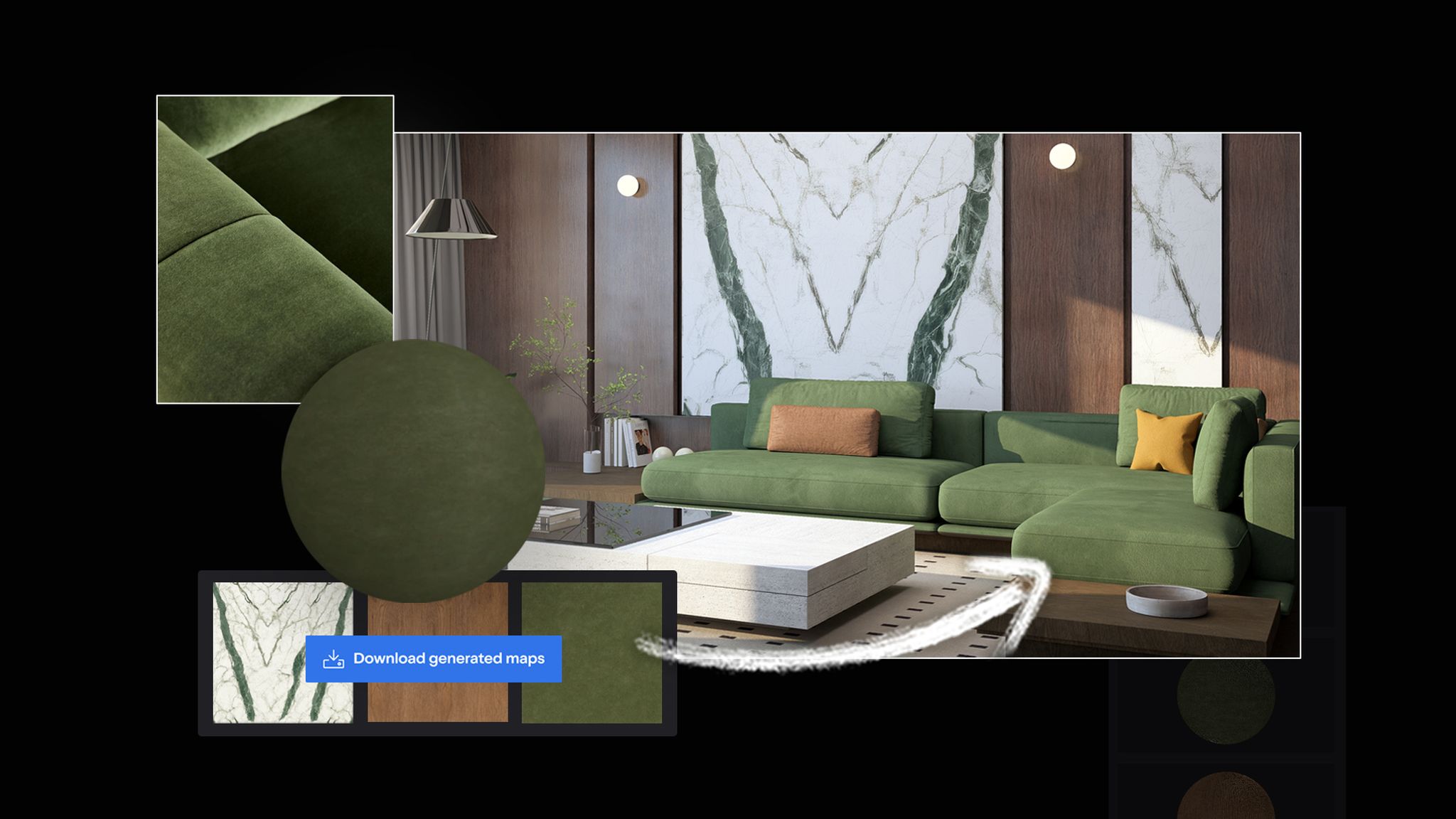
The material you want is usually on site rather than in an asset library — a local brick, a client's reference photo, the concrete finish on the building next door. Start with a single reference image and generate the maps you need for Lumion Pro.
Upload a clean image of the surface and crop to the area you want to use, then choose a material type such as bricks, concrete, fabric, wood, or stone.
Create Normal, Height, Roughness, and Metalness maps alongside the initial Albedo result. Compare, fine-tune, and preview the material under different lighting.
Save to your material collection or download the full set of maps to bring them into Lumion Pro.
Sometimes the design is finished but the image needs another pass — more material detail, stronger atmosphere, richer planting, or a different time of day. AI Enhancer works from an existing image in Lumion Cloud, so you can explore changes without returning to the scene for every alternative.
Explore different lighting and atmosphere, from morning to night, while keeping your design intact.
Refine people and their visual detail while preserving their place in the scene.
Give trees, planting, and landscaping greater definition or a different character.
Refine objects, surfaces, and materials with more texture, definition, and realism.
Different moments in a project call for different ways of communicating the same design. With AI Enhancer's Expert Mode, use custom prompts to explore materials, lighting, atmosphere, landscaping, color, and overall visual style — and describe the parts of the image that should stay unchanged. Prompts can run up to 6,000 characters.
Refine lighting, materials, planting, and scene detail for a more photographic finish while keeping the original architecture as the reference.
Shift color, texture, and atmosphere toward a more illustrative or editorial treatment for concept presentations or competition boards.
Try a maquette-style interpretation that brings massing and spatial relationships forward, or explore other model-like visual languages when the idea matters more than photorealism.
The image that works for review isn't always large enough for a presentation board, print, or large display. AI Upscaler increases the resolution of an image you already have, giving you a larger output without another high-resolution render.
Use it when a selected image needs to go further, or when an older render was never created at the size you now need.
How it worksLumion includes four AI tools: the AI Material Generator, AI Enhancer (with Expert Mode), and the AI Upscaler. All are accessed through Lumion Cloud and work alongside Lumion Pro.
The AI tools run in Lumion Cloud in your browser. You'll need a Lumion Pro subscription to bring generated materials back into your project and render final visuals.
It turns a single reference photo into a full set of ready-to-use PBR maps — Albedo, Normal, Height, Roughness, and Metalness — that you can download or save directly to your material collection.
It refines an existing image already in Lumion Cloud — adjusting time of day, characters, vegetation, or materials — without needing to re-render the scene.
Expert Mode is a custom-prompt version of the AI Enhancer, supporting prompts up to 6,000 characters — useful for realistic, artistic, or creative explorations beyond the preset options.
The AI Upscaler can boost image resolution to 8K+, making it suitable for large presentation boards and print without a new high-resolution render.
Yes. All AI tools are included with every Lumion Cloud plan, free during Beta and bundled with every Lumion subscription (View, Pro, and Studio).