Guides
How to turn a reference image into a PBR
material with Lumion Cloud
Mar 26, 2026
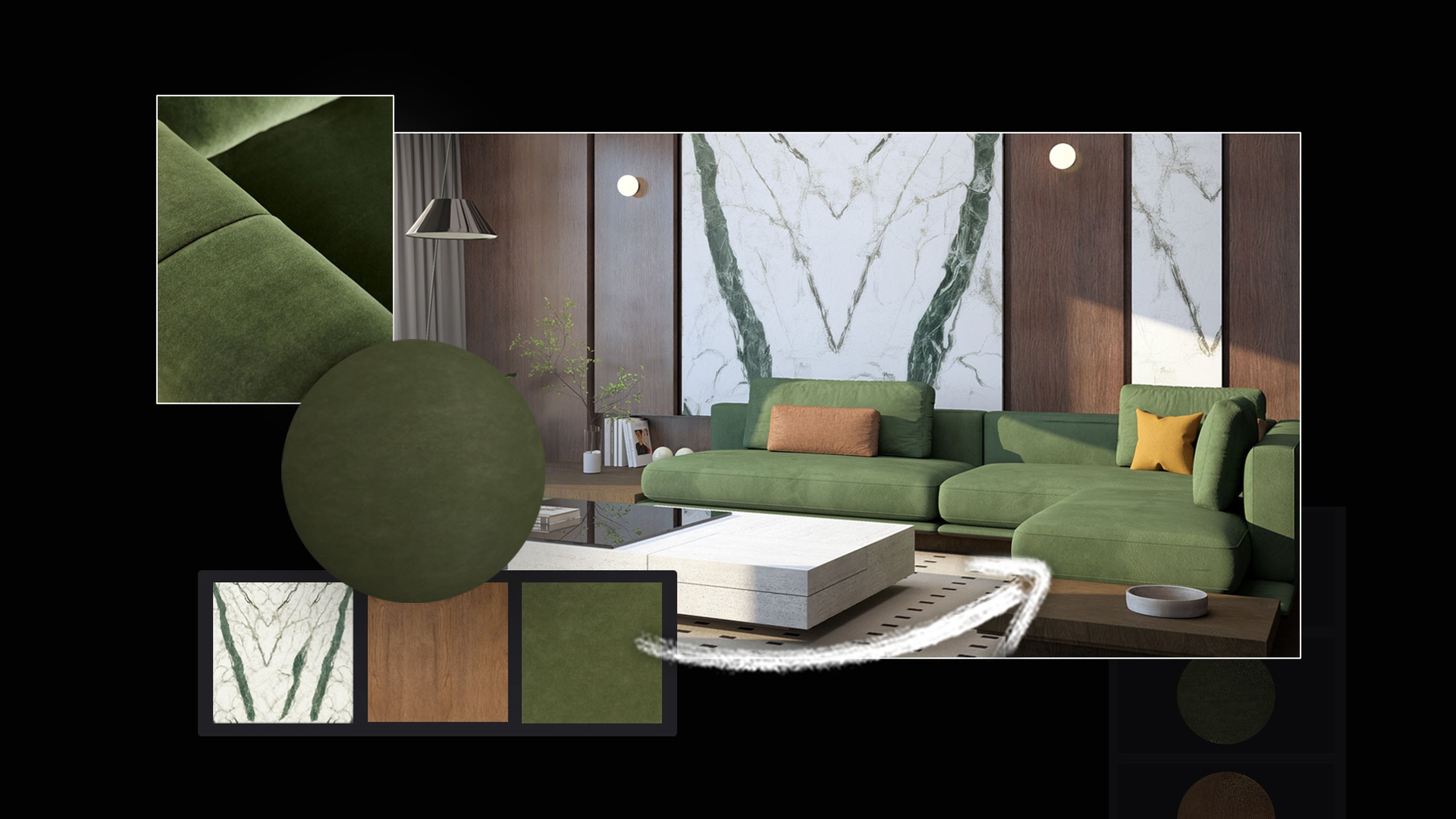
See the AI Material
Generator in action
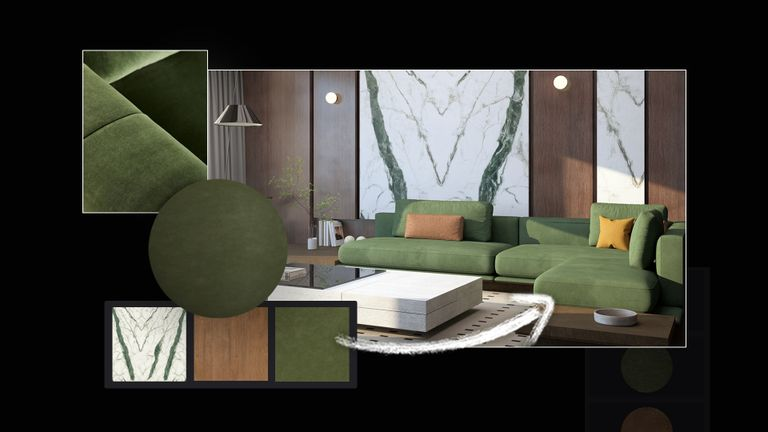
Watch how a real-world reference becomes a seamless, usable PBR material in Lumion Cloud. Try it for yourself and turn any inspiration into material maps you can apply to your projects in Lumion Pro, or any other 3D workflow.
5 easy steps to generating custom PBR materials
Follow this quick guide to go from reference image to PBR maps you can bring straight into Lumion Pro.
Step 1
Upload
Start with any image. See a texture you like out in the real world? Snap a photo with your phone and upload into Lumion Cloud. Be sure to capture the surface straight-on.
When you’re in the Lumion Cloud dashboard, look to the menu on the left and select AI Material Generator. Then, click on Browse local files to upload your image or simply drag and drop it in place.
Step 2
Refine
Use precision cropping tools to focus on the exact surface you want to capture.
Select a material type, to give the AI a strong starting point. You’ll find a selection of common material types to choose from, including Bricks, Concrete, Fabric, Wood, and Stone. Or just select Other if you want to explore something different.
Step 3
Generate
Click Generate to turn your reference into a seamless, tileable texture. Compare the 2D maps and 3D preview side by side in split view.
Then click Generate All to create Normal, Height, Roughness, and Metalness maps alongside the initial Albedo result. Fine-tune each map, then use the right-hand panel to zoom in, switch preview meshes, and test the material under different lighting conditions.
Step 4
Save and download
PBR maps
Once your material looks right, click Save to keep it, then choose Download generated maps to export the PBR maps and bring them into Lumion Pro.
Generated materials are automatically saved in My Creations. Here, you can rename your materials or duplicate them if you want to create different variations.
Step 5
Import and apply your
material in Pro
Once downloaded, your maps are ready to import into Lumion Pro, where you can adjust, combine, and apply them in your scene.
Built from references that matter to your project, these custom materials make it easier to match real-world context, respond to client input, and keep your workflow moving.
Generate your own material today
The AI PBR Material Generator makes it easy to turn project references into custom materials you can bring straight into Lumion Pro. Whether you’re matching real-world context, responding to client input, or exploring new ideas, it’s a faster way to create materials that fit the work.
And it’s just one part of Lumion Cloud. Included free with every Lumion plan, Lumion Cloud brings together visual collaboration tools, native uploads from Lumion Pro and View, powerful AI image upscaling, and free content packs—all in one place.